
How to Set Up a Prop Firm EA From Scratch: Complete Beginner's Installation Guide

Table of Contents
June 2026 Update
The setup process for a prop firm ea on FTMO changed slightly in June 2026. FTMO now requires traders to complete a short platform verification step - confirming your MT4 or MT5 account number is linked to your FTMO dashboard - before the evaluation clock starts. This step takes under 5 minutes but must be done before placing the first trade. Traders who skip it and begin trading immediately have reported their evaluation start date being disputed. Verify the link in your FTMO dashboard before the EA places its first entry.
Alpha Capital also updated their EA whitelist process in June: automated trading is now enabled by default on all new challenge accounts without requiring a support ticket request. This removes a step that previously caught new EA traders off guard when their first trades were rejected by the platform's manual-trading-only default setting.
What You Need Before You Start
Getting your first forex robot running is genuinely straightforward when you follow the right sequence of steps. The single most common reason beginners struggle is not technical complexity - the tools involved are more accessible than people assume - it is that they try to skip steps, move too quickly between phases, or start the evaluation before properly validating their setup on a demo environment.
Before you buy an evaluation or download anything, make sure you have the following sorted out. First, a prop firm selected and its rules reviewed thoroughly. Know the profit target percentage, the maximum drawdown, the daily loss limit calculation method, and any strategy restrictions before you spend money. Second, a computer or VPS where you can run MetaTrader continuously without interruption. Third, a total budget that covers both the evaluation fee and the EA software cost, ideally with enough to cover one retry if needed. Fourth, enough time to properly set up and monitor the EA during the evaluation period - this is a business, not a completely hands-off investment.
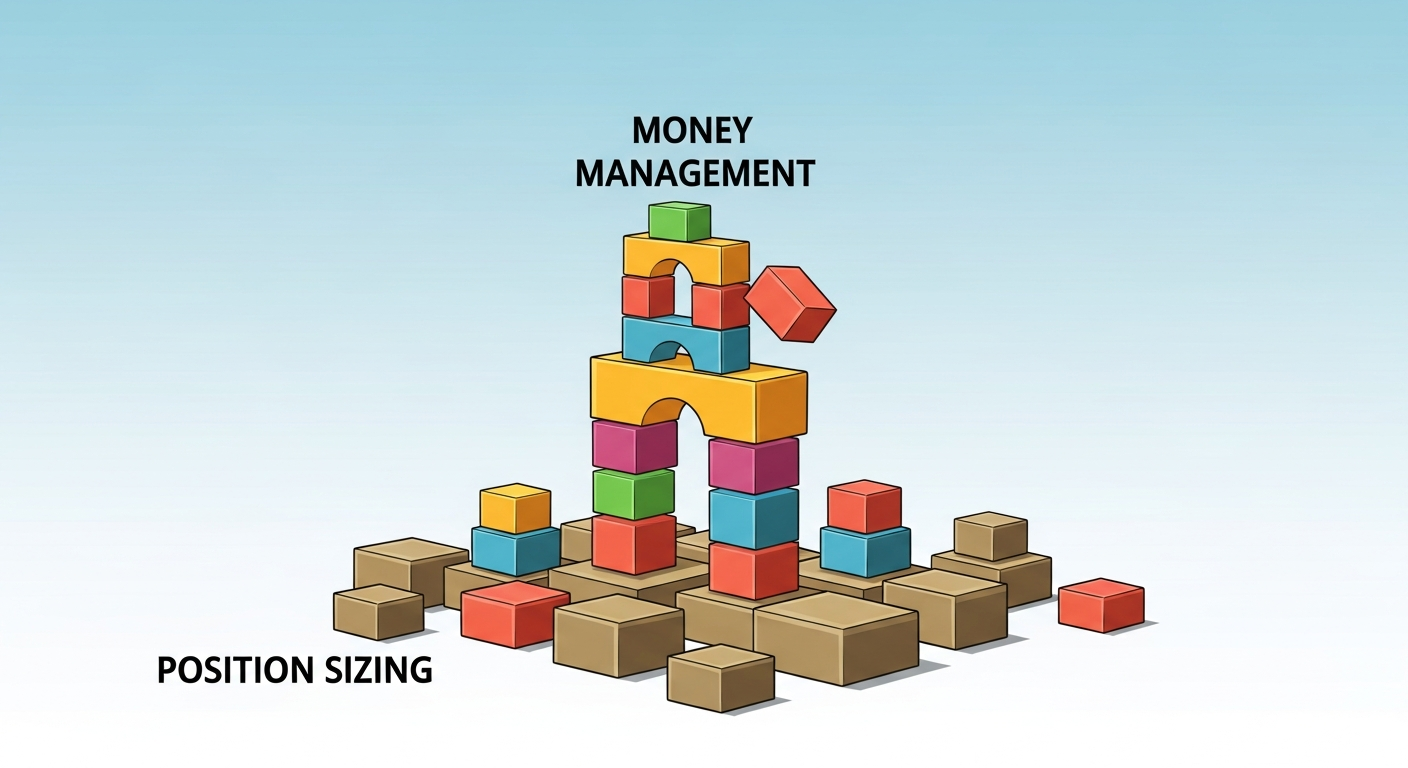
Let us be specific and honest about the technical knowledge required. You do not need to understand programming or coding. You do not need to have traded manually before. You do not need to understand the mathematics of the EA's underlying strategy. What you do need is the ability to follow software installation instructions carefully, to navigate basic Windows file system operations like copying files and opening folders, and to troubleshoot fundamental software issues by reading error messages and following developer guidance. If you can install a desktop application and configure its settings, you have the technical skills needed to set up and run a prop firm EA.
Complete Starting Checklist
Prop firm selected with rules reviewed. Evaluation fee purchased or ready to purchase. EA from a reputable developer selected, purchased, and download link received. MetaTrader downloaded from your prop firm's client portal (not from the general MetaTrader website). VPS either provisioned and accessible or personal computer ready to run continuously. Notes on your prop firm's specific parameters: profit target percentage, maximum drawdown percentage and calculation method, daily loss limit percentage and calculation method, any restricted strategies, and the account reset and retry policy.
Choosing and Purchasing Your EA
The EA you choose has a larger impact on your evaluation outcome than any subsequent configuration decision. Many beginners spend hours researching which prop firm to use and then purchase the first EA they find through a Google search or a single forum recommendation. This backwards prioritization is one of the most consistent patterns among traders who fail their first several evaluations.
What Separates Quality EAs from the Rest
A reputable prop firm EA developer will show you verified trading results from live accounts, not just backtests. The difference between these is enormous and non-negotiable: backtests are generated after the fact by selecting parameters that fit historical data, while live account results show how the algorithm actually performed in real market conditions with real money on the line. Look for Myfxbook verification links or similar third-party verified trading statements that you can examine independently.
They will have a documented update policy covering how they respond when prop firms change their rules. Prop firm rules do change, and an EA that was calibrated for one set of rules can produce violations when those rules are updated without the EA developer responding. Ask specifically how the developer communicated the last major rule change to their customers and how quickly they pushed an updated build.
They will have responsive customer support that answers technical questions in a reasonable timeframe. They will provide installation documentation clear enough that you can follow it without a phone call. They will have a verifiable presence - a real website, a real community, real testimonials that you can cross-check through independent search. And they will not guarantee specific pass rates or specific profit returns, because any honest developer knows that market conditions vary and outcomes are never certain.

Red Flags to Avoid
Avoid developers who are anonymous with no verifiable history or community presence. Avoid EAs that only show backtests with no live account data. Be very skeptical of pricing that is either suspiciously cheap (under 100 dollars for a comprehensive prop firm system) or suspiciously expensive (over 1,000 dollars for a single license) without clear justification. Be cautious of guarantees of specific pass rates like "guaranteed 95% pass rate" because this is either a marketing exaggeration or a sign the developer does not understand the statistical nature of trading outcomes.
EA Purchase and Delivery Process
Once you purchase, you will typically receive the EA in one of two forms. Either a compiled file with a .ex4 extension for MT4 or .ex5 for MT5, which is the executable that MetaTrader loads directly. Or access to a member portal where you log in, manage your license, and download the current version. Some developers deliver via email within minutes of purchase. Others have member portals where the files are always available for download and update. Along with the EA file, you should receive a comprehensive settings guide, a setup manual, and ideally pre-configured settings profiles for specific prop firms like FTMO, The Funded Trader, and E8.
License Management
Most paid EAs use license systems tied to your MetaTrader account number or computer hardware ID. When you move to a VPS - which you should do for reliable 24/7 operation - you will need to transfer or reactivate the license for the new environment. Contact your EA developer before migrating to a VPS to understand exactly how their licensing works and whether there is a transfer process. Discovering your license does not transfer correctly after you have already moved to a VPS and started an evaluation is a genuinely stressful and avoidable situation.
Setting Up MetaTrader Correctly
Download MetaTrader from your prop firm's client area, not from the general MetaTrader website or any third-party download link. Your prop firm provides a branded, pre-configured version of the platform that connects automatically to their specific trading servers. Using the generic MetaTrader download requires manually entering your firm's server details, which adds unnecessary complexity and occasionally results in connecting to incorrect servers.
Initial Login and Verification
After installation, open MetaTrader and navigate to File, then Login to Trade Account. Enter the account number and password from your prop firm's email, and select the correct trading server from the dropdown list. The server name is typically your firm's name followed by a designation like "Live," "Demo," or a location identifier. When connected successfully, your account balance will appear in the Navigator panel on the left side of the platform and in the account summary at the bottom of the screen. Verify that the balance matches what you paid for - this confirms you are connected to the correct account on the correct server.
Critical Platform Configuration Settings
Before touching the EA installation at all, configure two specific platform-level settings that many beginners skip and then wonder why their EA is not placing trades.
First, enable AutoTrading from the toolbar at the top of the platform. There is an "AutoTrading" button that toggles between active and disabled states. When enabled, the button text turns green and displays "AutoTrading: On." When disabled, it is grey. If this is disabled, your EA will load onto the chart, appear to be functioning, and receive all market data correctly - but it will never place or manage any trade. This is the most common reason first-time EA traders think their robot is broken when it is actually a single settings toggle preventing it from doing anything.
Second, for each specific chart you attach your EA to, right-click the chart, select Expert Advisors, and ensure the "Allow live trading" checkbox is enabled under the Common tab in the EA properties window. This chart-level permission is separate from the platform-level AutoTrading toggle and both must be enabled simultaneously. One without the other will still result in no trades being placed.

Enabling Algorithmic Warnings and Logging
Configure MetaTrader to write detailed logs by ensuring the Expert Advisors tab at the bottom of the platform is visible. This tab shows every action your EA takes, every order it places, every error it encounters, and every decision its logic makes in real time. You cannot troubleshoot a non-functioning EA without reading these logs, and you cannot confirm a correctly functioning EA without reviewing them after the first few hours of operation. Get comfortable reading the Expert Advisors log from day one rather than treating it as an advanced feature you will look at eventually.
Installing Your EA File
Installing the EA file itself is simpler than most tutorials make it sound. In MetaTrader, navigate to File and then select Open Data Folder. This opens the directory on your computer or VPS where MetaTrader stores all of its working files. Navigate from this data folder into the MQL4 subdirectory (or MQL5 for MT5 users), then into the Experts subdirectory within that. Copy your .ex4 or .ex5 EA file directly into this Experts folder. You do not need to create any subfolders or rename any files.
Refreshing the Navigator
After copying the EA file into the Experts folder, return to MetaTrader. In the Navigator panel on the left side of the screen, locate the Expert Advisors section. Right-click on "Expert Advisors" and select Refresh from the context menu. Your newly installed EA should now appear in the list. If it does not appear after refreshing, verify that the file is in exactly the right folder path and that the file extension matches your MetaTrader version. If you are on MT4 and accidentally installed an .ex5 file, it will not appear in the Navigator regardless of refreshing.
Opening the Correct Chart
Each EA is designed for specific trading pairs and timeframes, which are documented in your EA developer's setup guide. Open a chart for the correct pair at the correct timeframe before dragging your EA onto it. Common choices for prop firm EAs include EURUSD on one-hour or four-hour charts, XAUUSD (gold) on fifteen-minute or one-hour charts, or major indices like US30 and US100 on various timeframes. Loading an EA onto the wrong pair or wrong timeframe will result in no trades being generated because the algorithm's signal logic is calibrated for specific market characteristics.
Once the chart is open at the correct pair and timeframe, drag your EA from the Navigator panel onto the chart. A settings window will pop up immediately. Do not close this window or dismiss it by pressing Cancel - configuring these settings correctly is the most important step in the entire setup process.
Configuring EA Settings for Your Prop Firm
This is where most beginners make their most expensive mistakes. The EA's default settings are generic starting points designed for average conditions, not for your specific prop firm's rules, your specific account size, or your specific profit timeline requirements. Running default settings on a live evaluation is one of the most reliable ways to fail unnecessarily at a challenge your EA is otherwise capable of passing.
Account Balance and Risk Per Trade
Configure the account balance setting to match your actual evaluation account size precisely. This is the basis for all of the EA's position size calculations. If the field shows a different value than your actual account, every trade will be sized incorrectly. Risk per trade should be set as a percentage of account balance - typically between 0.5% and 1.5% depending on your firm's drawdown limits and the EA developer's recommendations for your specific firm.
Do the math before you set this number. If your firm's daily loss limit is 5%, and your EA's strategy can produce up to five losing trades on a bad day, then risk per trade of 1% means the worst possible day loses 5% - exactly at your limit. Setting risk per trade at 0.75% gives you a meaningful safety margin. Conservative settings for prop firm evaluations are not weakness; they are the sensible recognition that the goal is to pass consistently, not to maximize speed at the cost of reliability.
Drawdown and Daily Loss Stops
Configure your EA's internal maximum drawdown stop one to two percentage points tighter than your firm's actual maximum. For a firm with 10% maximum drawdown, set your EA's stop at 8 to 8.5%. For a firm with 8% maximum drawdown, set your stop at 6.5 to 7%. This buffer accounts for execution lag between your EA detecting a threshold breach and the resulting close orders being actually filled in the market. In fast-moving conditions, there will always be some slippage between detection and execution.
Similarly, configure a daily loss stop at 3 to 3.5% for firms with a 5% daily limit. When this daily stop is hit, the EA should close all open positions and pause trading for the remainder of the trading day. This circuit breaker prevents a bad morning from becoming a daily limit violation.

Loading Pre-Set Profiles
If your EA developer has provided a settings file with a .set extension specifically for your target prop firm, use it. In the EA settings window, go to the Inputs tab and click the Load button at the bottom. Navigate to the .set file and load it. The settings will populate automatically based on the developer's tested configuration for your firm. After loading, still manually verify that the account balance field has been updated to your actual account size, since some preset files use placeholder values in this field that you must update yourself.
Pre-set profiles from reputable developers represent days or weeks of testing and optimization work. Using them as your starting point and only making targeted adjustments where your specific situation differs from the profile's assumptions is almost always better than building your settings from scratch using the developer's documentation alone.
Setting Up a VPS for 24/7 Trading
Running your EA on a personal computer creates availability risks that will eventually cost you. Power outages, internet disconnections, Windows updates that force unexpected restarts, and computer sleep mode activations can all interrupt your EA mid-trade, leave positions open without management, or cause the EA to miss critical trading opportunities during the disruption. A Virtual Private Server eliminates all of these risks.
A forex VPS is a Windows server running in a professional data center with redundant power systems, redundant internet connections, guaranteed uptime levels, and continuous environmental monitoring. Your MetaTrader installation runs on this server and trades continuously regardless of what happens to your personal computer. When you want to check on your EA, you connect remotely through a standard Remote Desktop Connection and see the platform exactly as you left it.
For a detailed comparison of VPS providers and setup instructions specific to forex EA trading, see our guide on the best VPS options for forex EAs in 2026. The short recommendation: a Windows VPS with at least 2GB RAM located geographically close to your prop firm's servers, typically in Europe or the US East Coast, from a reputable provider with documented 99.9% or better uptime guarantees. Budget 25 to 50 dollars per month for a quality single-account VPS setup.
After your VPS is provisioned, install MetaTrader on it by downloading from your prop firm's client portal within the remote desktop session. Copy your EA file to the correct Experts folder, log in with your evaluation account credentials, configure your settings exactly as you did locally, and verify AutoTrading is enabled. Set MetaTrader to launch automatically on system startup so any VPS maintenance reboots do not require manual intervention to get the EA trading again.
Going Live and Monitoring Your EA
Once everything is configured and running on your VPS, establish a monitoring routine before you step back and let the EA work. Many new EA traders either check their account obsessively every few minutes - which creates anxiety and the temptation to interfere unnecessarily - or they check so rarely that they miss genuine problems that could have been caught early.
A practical monitoring cadence is twice daily: once in the morning to review overnight and pre-session activity, and once in the evening to review the day's results. During each check, verify: the EA is still running and the AutoTrading button is still active, the account balance and equity are within expected ranges, no error messages appear in the Expert Advisors log tab, and the overall drawdown is well within your configured limits.
What Normal EA Behavior Looks Like
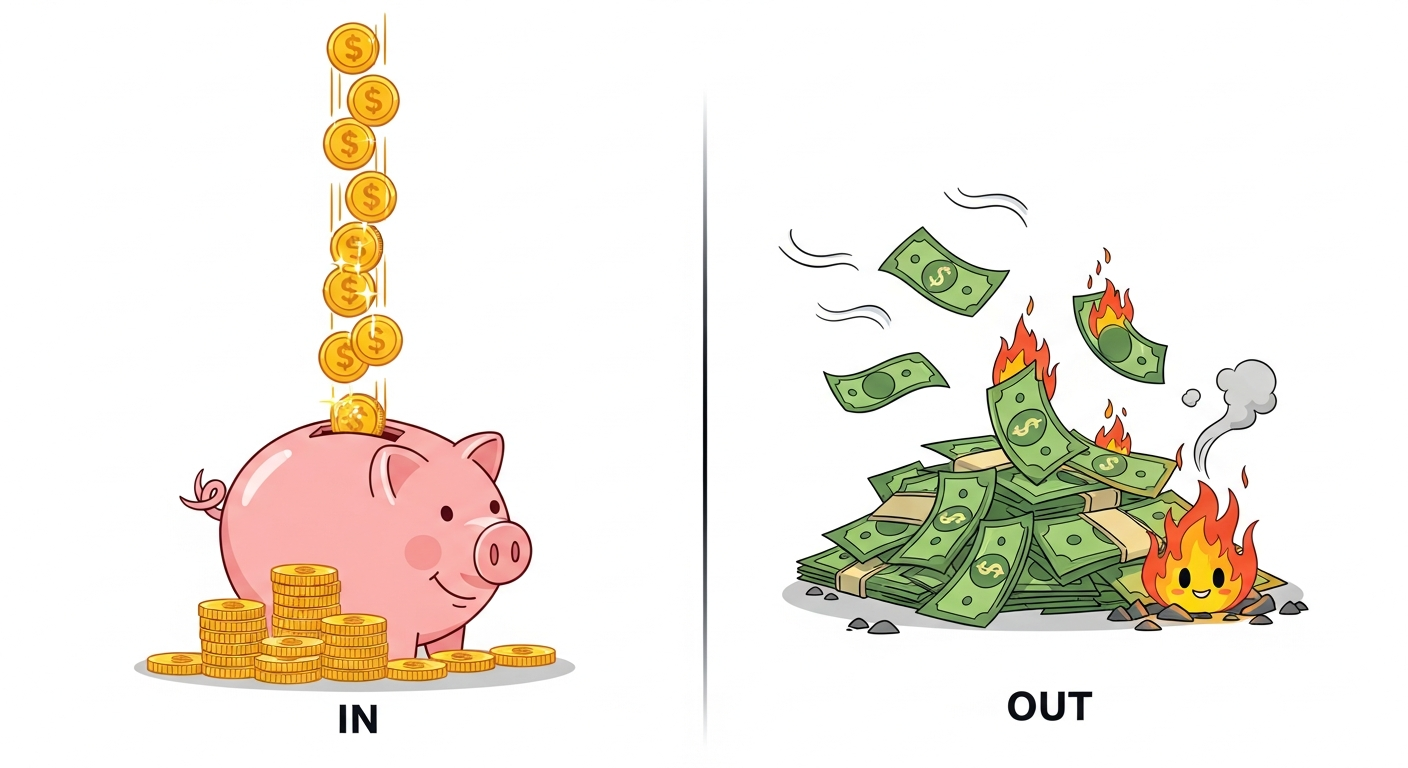
New EA traders sometimes panic during periods when the EA is not placing trades or when they see the account in drawdown. Both of these are usually normal. Most prop firm EAs have built-in session filters, volatility filters, and signal quality requirements that prevent trading during periods the algorithm determines are unfavorable. A few days without trades during a low-volatility market period is expected behavior, not a malfunction. Similarly, drawdown within your configured limits is a normal and expected part of any trading strategy. It only becomes concerning when it approaches your maximum configured threshold.
When to Actually Intervene
You should intervene - meaning pause the EA and contact your developer - if the account drawdown approaches within one percentage point of your configured maximum stop. If your internal stop is set at 8% and you are seeing 7% drawdown, that warrants attention. Also intervene if the EA stops producing any trades whatsoever for five or more consecutive trading days with no observable market condition reason. And always intervene if you see persistent error messages in the Expert Advisors log, particularly messages about failed order submissions, license verification issues, or connection problems.
For deeper context on what normal versus concerning performance patterns look like, read our analysis of how backtesting and live trading results typically differ. Understanding why the EA's live behavior might look different from what the backtest projected helps you maintain appropriate perspective during the normal volatile periods that every evaluation includes.
First Evaluation Timeline
Most well-configured prop firm EAs complete Phase 1 evaluations within 15 to 40 calendar days depending on market conditions and the EA's risk profile. Conservative settings that prioritize capital protection typically take the full time window or close to it. More aggressive settings aim for faster completion but at higher failure risk. Your first evaluation should use conservative settings to prioritize learning and validation over speed. Once you have a successful funded account and understand how your EA behaves, you can make more informed decisions about risk settings for subsequent evaluations.
Related Articles
Best Prop Firm Challenges for EA Traders in 2026: Updated May Rankings
Not all prop firm challenges are created equal for automated trading. We rank the top 6 evaluations by EA compatibility, rule strictness, fee value, and real-world pass rates - updated with May 2026 changes.
Prop Firm Profit Split Comparison 2026: Which Firm Pays EA Traders the Most? [Updated April 2026]
An 80% profit split sounds generous until you compare it against a 90% competitor. But the headline number is only one dimension of the income comparison. Here is the complete payout analysis EA traders actually need.
How to Withdraw from a Prop Firm Funded Account: The Complete 2026 Payment Guide
Getting funded is one thing. Getting paid is another. This guide covers every withdrawal method, payout schedule, and potential snag across the major prop firms so your profits actually reach your bank account.